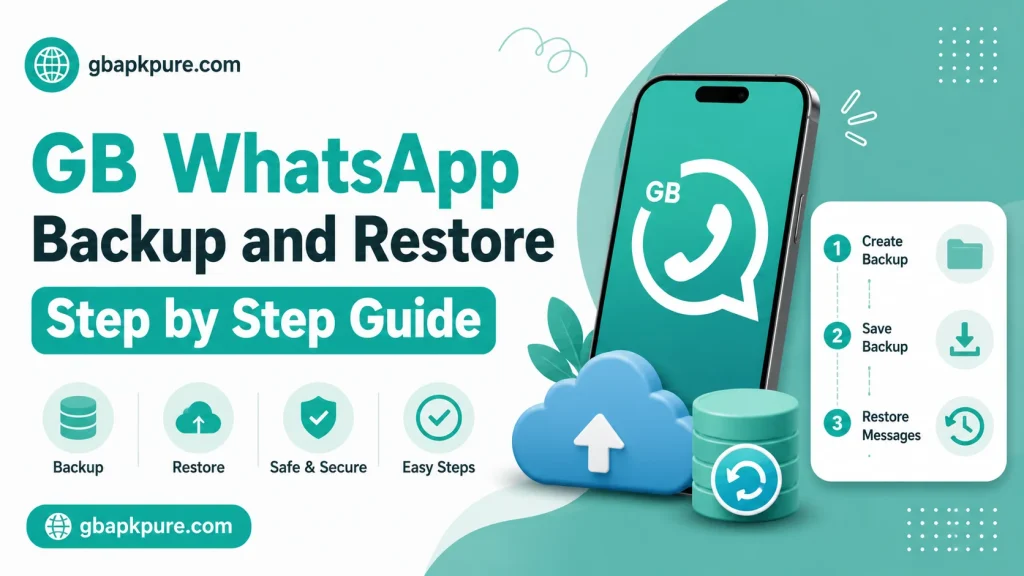
GB WhatsApp Backup and Restore Step by Step Guide
Backing up your chats is the single most important habit for any GB WhatsApp user. Whether you are switching phones, updating the app, or just being safe, a good backup strategy saves you from losing years of conversations, photos, and voice notes. The 2026 build of GB WhatsApp App has refined the backup and restore process, making it more reliable and easier to use. In this complete guide, gbapkpure.com walks you through every step of backing up, restoring, and managing your chat history.
Why Backups Matter
The official WhatsApp client backs up your chats to Google Drive automatically. GB WhatsApp does the same, but it also offers local backups, which are faster and more reliable for restoring on the same device. Without a backup, a failed update, a phone reset, or a botched reinstall can wipe out your entire chat history.
A good backup strategy protects you from:
- Accidental data loss
- Failed app updates
- Phone damage or loss
- Switching to a new device
- Storage issues that force you to reset
- Account bans that limit your access
Types of Backups in GB WhatsApp
GB WhatsApp supports three main types of backups, and each has its own strengths.
|
Backup Type |
Storage Location |
Best For |
|---|---|---|
|
Local backup |
Internal storage > GBWhatsApp > Databases |
Quick restore on the same device |
|
Google Drive backup |
Your Google account |
Restoring on a new device |
|
Manual export |
Anywhere you choose |
Long-term archival |
Let us look at each one in detail.
Local Backup
The local backup is the fastest and most reliable way to protect your chats. It saves a snapshot of your database to your phone’s internal storage. The process is simple.
How to Back Up Locally
- Open GB WhatsApp
- Tap the three-dot menu in the top right
- Choose “GB Settings” or “More”
- Select “Chat Backup”
- Tap “Back Up Now”
- Wait for the backup to complete
A typical backup takes a few seconds to a few minutes, depending on the size of your chat history. Once it is done, the file is saved in the GBWhatsApp > Databases folder in your internal storage.
Local Backup Schedule
GB WhatsApp can also back up automatically. To set a schedule:
- Open GB Settings > Chat Backup
- Tap “Auto Backup”
- Choose a frequency: daily, weekly, or monthly
- Set the time (usually at night)
- Save
The gbapkpure.com team recommends a daily local backup. It takes almost no time, and it ensures you never lose more than 24 hours of chats.
Google Drive Backup
Google Drive backup is essential if you want to restore your chats on a different device. It works similarly to the local backup, but the file is stored in your Google account.
How to Back Up to Google Drive
- Open GB Settings > Chat Backup
- Tap “Back Up to Google Drive”
- Choose a backup frequency
- Pick a Google account
- Choose whether to include videos
- Tap “Back Up Now”
Backup Frequency Options
GB WhatsApp offers several Google Drive backup frequencies:
- Daily
- Weekly
- Monthly
- Off
For most users, weekly is a good balance between safety and storage use. If you have a lot of important chats, switch to daily.
Manual Export
The manual export feature lets you save individual chats, including all media, to a location of your choice. This is useful for long-term archival, sharing chats with someone else, or moving specific conversations to a new device.
How to Export a Chat
- Open the chat you want to export
- Tap the three-dot menu
- Choose “More”
- Tap “Export Chat”
- Choose whether to include media
- Pick a save location (Google Drive, email, local storage, and so on)
- Save
The export will create a .txt file with the chat history and a separate folder with the media files.
How to Restore from a Backup
The restore process depends on the type of backup you are using. Let us walk through each one.
Restoring from a Local Backup
- Make sure the backup file is in the GBWhatsApp > Databases folder
- Install or reinstall GB WhatsApp from gbapkpure.com
- Verify your phone number
- When prompted, tap “Restore”
- Wait for the restore to complete
GB WhatsApp will detect the most recent backup file automatically.
Restoring from Google Drive
- Install GB WhatsApp from gbapkpure.com
- Verify your phone number
- When prompted, tap “Restore from Google Drive”
- Sign in to the Google account that has the backup
- Wait for the download and restore to complete
This process requires a stable internet connection because the backup file is downloaded from the cloud.
Restoring a Specific Chat
If you only need to restore one conversation, use the export feature in reverse. Import the .txt file and media folder into the chat on your new device.
Backup Best Practices
The gbapkpure.com team has put together a list of best practices for keeping your chats safe.
- Do a local backup at least once a week
- Do a Google Drive backup at least once a month
- Keep an extra copy of your local backup outside the device
- Test your backups occasionally by restoring on a second device
- Always back up before updating GB WhatsApp
- Always back up before changing themes or major settings
Managing Backup Storage
Backups can take up a lot of space, especially if you have years of chats with thousands of media files. Here is how to keep your backup size under control.
Tips for managing storage:
- Disable auto-download for media in both accounts
- Clear old media files from your chats
- Use the “exclude videos from backup” option in Google Drive settings
- Delete backups older than 3 months
- Move older backups to a personal cloud account
What to Do If a Restore Fails
Restores usually work smoothly, but sometimes things go wrong. Here is how to handle the most common restore issues.
Issue 1: Backup File Not Detected
Make sure the backup file is in the correct folder. The default location is:Internal Storage > Android > media > com.gbwhatsapp > Databases
Or, on older devices:Internal Storage > GBWhatsApp > Databases
Issue 2: Restore Stops Midway
This usually means the backup file is corrupted. Try restoring from an older backup. If that does not work, the original file may be damaged.
Issue 3: Google Drive Backup Not Found
Make sure you are signed in to the correct Google account. The backup is tied to the account, not the device. If you have multiple Google accounts, try each one.
Issue 4: Chats Missing After Restore
This happens when you restore an older backup over a newer one. Always pick the most recent backup unless you have a specific reason to go back.
Backup and Restore on PC
If you are running GB WhatsApp on a PC using an emulator, the backup process is slightly different. Most emulators have their own file manager that lets you access the GBWhatsApp folder on the virtual device.
Steps to back up on an emulator:
- Open the emulator’s file manager
- Navigate to the GBWhatsApp > Databases folder
- Copy the backup files to your PC
- Save them in a safe location
To restore on an emulator, copy the backup files back to the same folder on the virtual device before launching GB WhatsApp.
Backup Tools and Add-Ons
The 2026 build includes a built-in backup scheduler and a backup history viewer. You can see every backup that has been created, when it was created, and how large it is.
To access the backup history:
- Open GB Settings > Chat Backup
- Tap “Backup History”
- Browse the list
- Delete old backups you no longer need
Frequently Asked Questions
At least once a week for local backups, and at least once a month for Google Drive backups. Power users should back up daily.
Yes, the local backup format is compatible with the official WhatsApp. You can copy the folder over and the official app will recognize it.
Local backups are not encrypted by default. Google Drive backups can be encrypted with a password. The gbapkpure.com team recommends enabling encryption for cloud backups.
Local backups stay on your device until you delete them. Google Drive backups stay in your account until you delete them or run out of storage.
If you have a Google Drive backup, you can restore your chats on a new device after installing GB WhatsApp from gbapkpure.com.
Conclusion
Backing up your chats is the most important habit you can build as a GB WhatsApp user. The 2026 build has made the process more reliable, more flexible, and easier to manage. Whether you prefer local backups, Google Drive, or manual exports, the tools are all there. Set up an automatic schedule, test your backups occasionally, and keep an extra copy in a safe place. With a solid backup strategy, you can update, switch phones, or recover from accidents without losing a single message. For more tips and guides, the gbapkpure.com team is always here to help.