GB WhatsApp Privacy Settings Complete Walkthrough
Privacy is the reason most people switch to GB WhatsApp. The official WhatsApp client has improved its privacy options over the years, but it still leaves a lot to be desired. GB WhatsApp gives you fine-grained control over almost every aspect of your online presence, from hiding your online status to locking individual chats. In this complete walkthrough, gbapkpure.com explains every privacy setting in the 2026 build, what it does, and how to configure it for the level of privacy you want.
Why GB WhatsApp Privacy Is Different
The official WhatsApp treats privacy as a fixed set of options. You can hide your last seen, profile photo, and status from specific people, but you cannot hide blue ticks, control your typing indicator, or freeze your activity timestamp. GB WhatsApp breaks those limits and gives you full control. The 2026 release has reorganized the privacy menu to make these options easier to find, and added new ones that did not exist in earlier versions.
This walkthrough is organized into the main privacy categories, with a step-by-step guide for each.
Privacy Menu Overview
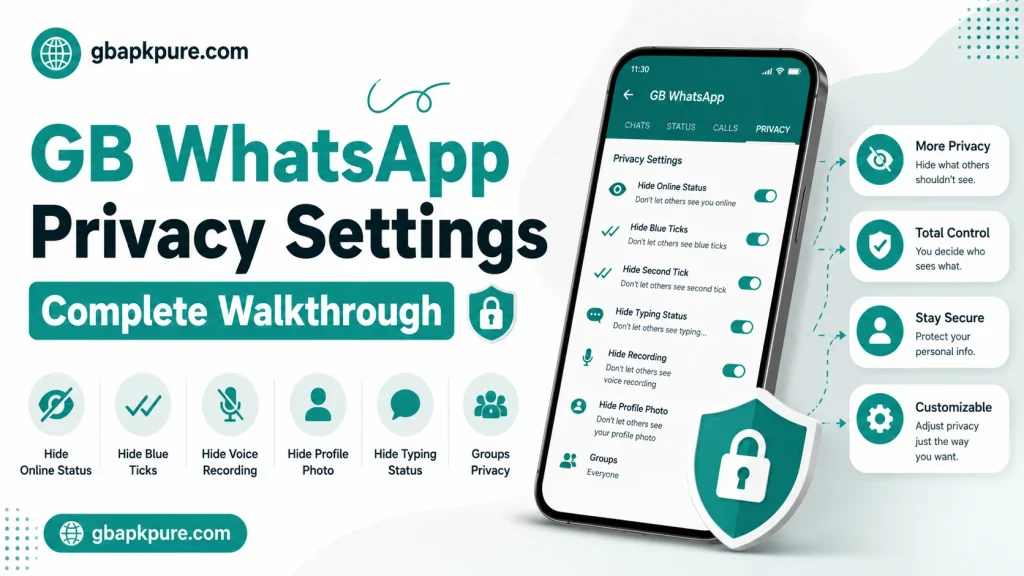
When you open GB WhatsApp and go to GB Settings > Privacy, you will see a long list of options. The 2026 build has grouped them into clear categories so you do not have to scroll through dozens of toggles.
The main categories are:
- Online status and last seen
- Read receipts and ticks
- Typing and recording indicators
- Profile and status visibility
- Chat and app lock
- Hidden chats and archives
- Anti-features (anti-delete, anti-revoke)
Let us look at each one in detail.
Online Status and Last Seen
The official WhatsApp lets you hide your last seen time from everyone, but it does not let you hide your online status. GB WhatsApp does both, and more.
Hide Online Status
This setting prevents your contacts from seeing the small “online” indicator when you are using the app. To enable it:
- Open GB Settings > Privacy
- Find “Online Status”
- Choose “Hide from Everyone” or “Hide from My Contacts Except”
- Save
Freeze Last Seen
This is one of the most popular features. It freezes your last seen timestamp on a specific date and time. To everyone else, it looks like you were last online at that frozen time, even if you are actively using the app right now.
Steps to freeze last seen:
- Open GB Settings > Privacy
- Tap “Freeze Last Seen”
- Choose a date and time
- Save
The gbapkpure.com team recommends picking a recent timestamp so your activity looks natural.
Last Seen Exceptions
If you want to hide your last seen from most people but show it to specific contacts, use the “My Contacts Except” option. The setup is simple:
- Tap “Last Seen”
- Choose “My Contacts Except”
- Select the contacts who can still see your last seen
- Save
Read Receipts and Ticks
In the official app, once you turn off read receipts, you also stop seeing other people’s read receipts. GB WhatsApp breaks this limitation.
Hide Blue Ticks While Still Seeing Others
The “Hide Blue Ticks” feature in GB WhatsApp lets you read messages without sending a read receipt, but you can still see when others have read your messages. This is something the official app will never allow.
To enable it:
- Open GB Settings > Privacy
- Enable “Hide Blue Ticks”
- Save
Hide Second Tick
The second tick appears when a message is delivered to the recipient’s phone. GB WhatsApp lets you hide this tick on the recipient’s side, which means they will not see that you have received their message.
To enable it:
- Open GB Settings > Privacy
- Enable “Hide Second Tick”
- Save
Hide Blue Ticks in Groups
Group chats are a different beast. The official app does not let you send read receipts in groups, but GB WhatsApp lets you hide them anyway. This is useful if you want to read group messages without anyone knowing.
To configure group blue ticks:
- Open GB Settings > Privacy
- Find “Hide Blue Ticks in Groups”
- Enable the toggle
- Save
Typing and Recording Indicators
When you are typing a message or recording a voice note, the other person can see it. GB WhatsApp lets you hide both.
Hide Typing Indicator
This setting prevents others from seeing the “typing…” bubble when you are composing a message. To enable it:
- Open GB Settings > Privacy
- Enable “Hide Typing Indicator”
- Save
Hide Recording Indicator
The recording indicator appears when you are recording a voice note. GB WhatsApp lets you hide it, so you can record and send voice notes without the other person knowing.
Steps:
- Open GB Settings > Privacy
- Enable “Hide Recording Indicator”
- Save
Profile and Status Visibility
GB WhatsApp gives you full control over who can see your profile photo, about section, and status updates.
Profile Photo Privacy
You can choose to show your profile photo to:
- Everyone
- My contacts
- My contacts except
- Nobody
This is more granular than the official app, which only offers the first three.
About Section Privacy
The “About” text under your name can be hidden from specific contacts or shown only to a select group. The setup follows the same pattern as profile photo privacy.
Status Privacy
In the official app, you can choose between “My contacts,” “My contacts except,” and “Only share with.” GB WhatsApp adds two extra options:
- “Hide status views from specific contacts” — view their status without them knowing
- “Schedule status deletion” — automatically delete a status after a set time
Chat and App Lock
This is one of the most important privacy categories. GB WhatsApp has both an app lock and a per-chat lock.
App Lock
The app lock requires a PIN, password, or fingerprint every time you open GB WhatsApp. To set it up:
- Open GB Settings > Privacy
- Tap “App Lock”
- Choose your method (PIN, password, fingerprint)
- Set a delay before re-locking
- Save
For maximum privacy, enable “Lock on Exit,” which locks the app the moment you switch away from it.
Chat Lock
Chat lock lets you protect individual conversations. Each locked chat requires the PIN, password, or fingerprint to open.
To lock a chat:
- Long-press the conversation
- Choose “Lock Chat”
- Confirm your method
- Save
The gbapkpure.com team recommends locking chats that contain sensitive information, such as banking confirmations or private conversations.
Hidden Chats
Hidden chats are similar to locked chats, but they do not even appear in the main chat list. They are stored in a separate area that is only accessible through the GB Settings menu.
To hide a chat:
- Long-press the conversation
- Choose “Hide Chat”
- Confirm your password
- The chat disappears
To find hidden chats:
- Open GB Settings > Privacy
- Tap “Hidden Chats”
- Enter your password
- The hidden conversations appear
Anti-Delete and Anti-Revoke
These are advanced features that protect you from message deletion.
Anti-Delete Messages
This feature prevents other people from deleting messages they sent to you. If they try, you will still see the original message in the chat, with a small “This message was deleted” tag.
Anti-Revoke Status
This feature lets you view statuses that someone has deleted before you had a chance to see them. It works in the background and saves deleted statuses in a private log.
To enable both:
- Open GB Settings > Privacy
- Enable “Anti-Delete Messages”
- Enable “Anti-Revoke Status”
- Save
Recommended Privacy Profiles
The gbapkpure.com team has put together a few suggested privacy profiles for different kinds of users. You can use these as a starting point and adjust to your taste.
Maximum Privacy
- Hide online status from everyone
- Freeze last seen
- Hide blue ticks and second ticks
- Hide typing and recording indicators
- Lock all chats
- Hide sensitive chats entirely
- Enable anti-delete and anti-revoke
Balanced Privacy
- Hide online status from everyone except close contacts
- Show last seen to selected contacts
- Hide blue ticks
- Show typing indicator
- Lock the app with fingerprint
- Lock sensitive chats only
Minimal Privacy (More Open)
- Hide online status from strangers
- Show last seen to everyone
- Show blue ticks
- Show typing and recording indicators
- App lock with PIN
- No chat lock
Frequently Asked Questions
No, hiding your online status only affects what others see about you. You can still send and receive messages normally.
Yes, use the “Hide from My Contacts Except” option and select the people who can still see your status.
Yes, GB WhatsApp supports fingerprint, PIN, and password for chat lock.
You can reset it from GB Settings, but you will need access to your Google account or the device PIN.
No, these are GB WhatsApp exclusive. The official app does not offer any of them.
Conclusion
GB WhatsApp privacy settings are the most powerful part of the app. The 2026 build organizes them into clear categories, adds a few new tricks, and makes it easier than ever to dial in the level of privacy you want. Whether you are a power user who wants maximum invisibility or a casual user who just wants to hide a few indicators, the tools are all there. Spend an afternoon exploring the privacy menu, set up a few profiles, and you will never feel limited by the official app again. For the latest updates and guides, the gbapkpure.com team is always here to help.