GB WhatsApp Dual Account Setup Made Easy
Running two WhatsApp accounts on a single phone used to require third-party cloner apps, custom ROMs, or even carrying two devices. GB WhatsApp changed all of that. The 2026 build includes a built-in dual account feature that lets you run two numbers on the same phone with a single tap, no extra apps required. In this guide, gbapkpure.com walks you through the entire setup process, explains how the feature works, and shares tips for getting the most out of running two accounts at once.
Why Use Two WhatsApp Accounts
There are plenty of good reasons to run two WhatsApp numbers on the same device. The most common are:
- Keeping personal and work chats separate
- Managing a business line without carrying a second phone
- Handling regional numbers while traveling
- Using a backup number for online accounts
- Running a community or fan account alongside a personal one
The official WhatsApp client does not support dual accounts natively, which is why GB WhatsApp’s built-in feature is so popular.
How the Built-In Dual Account Works
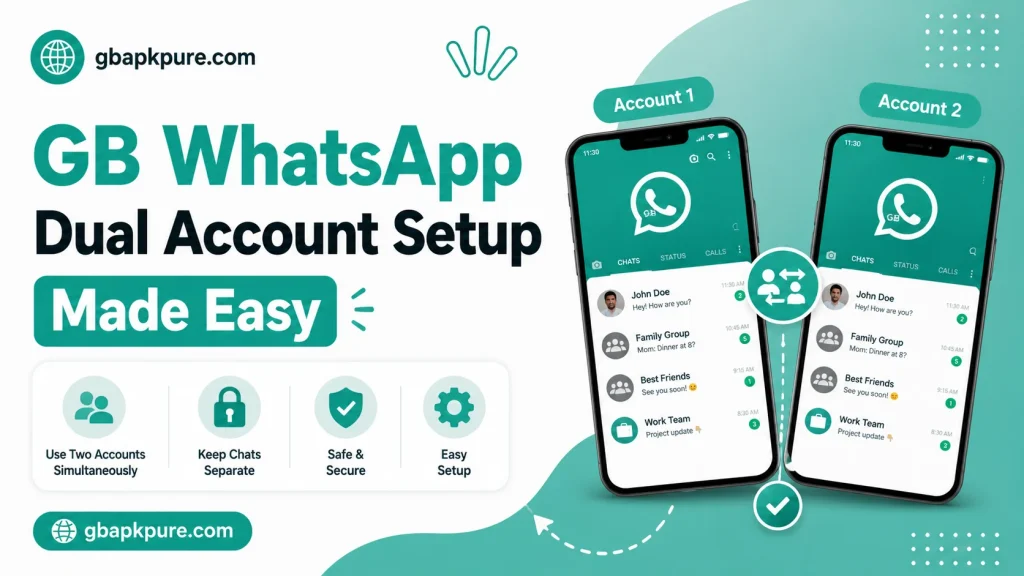
GB WhatsApp’s dual account feature uses parallel instances. When you enable it, the app creates a second copy of itself with its own data folder, settings, and chat list. The two instances run independently, which means you can be logged into both at the same time, with different phone numbers.
Each account has its own:
- Phone number and verification
- Chat history and media
- Privacy settings
- Notification preferences
- Theme and customization
- Backup schedule
This is much cleaner than the old method of using cloner apps, which often had stability issues and data conflicts.
Requirements for Dual Account Setup
Before you start, make sure your phone meets a few basic requirements.
- A recent version of GB WhatsApp, available from gbapkpure.com
- Two active phone numbers with SIM cards or virtual numbers
- Enough storage to handle two sets of chat data
- A stable internet connection for both numbers
Step-by-Step Setup Guide
The setup process is straightforward and takes about ten minutes for the second account.
Step 1: Update GB WhatsApp
Make sure you are running the latest version of GB WhatsApp. Older versions do not have the most stable dual account implementation. The 2026 build is recommended.
Step 2: Open GB Settings
Launch GB WhatsApp and open the side menu. Tap “GB Settings” or the gear icon in the top right.
Step 3: Find the Dual Account Option
In GB Settings, scroll to the “Account” section. Look for “Dual Account” or “Parallel Apps.” Tap it.
Step 4: Add a Second Account
Tap “Add Account” or the plus icon. The app will create a second instance of GB WhatsApp on your device. This may take a few seconds.
Step 5: Verify the Second Number
The second instance will launch and ask you to verify a phone number. Enter your second number and complete the SMS verification.
Step 6: Restore or Set Up the Second Account
If you have a backup of the second number’s chats, restore it. If not, set up the account fresh.
Step 7: Customize Each Account
Open GB Settings in both instances and customize the privacy, notifications, and theme for each. This is where the per-account customization shines.
How to Switch Between Accounts
Once both accounts are set up, switching is simple. The dual account feature gives you two ways to switch:
- Tap the profile icon at the top of the chat list to switch between accounts
- Use the app switcher on your phone to jump between instances
The first method is more useful for most users, because it keeps both accounts accessible from a single tap.
Notification Management
Running two accounts means double the notifications. The 2026 build has improved notification handling to keep things clean.
Notification options include:
- Separate notification sounds for each account
- Per-account LED colors
- Per-account vibration patterns
- Mute one account while the other is active
- Combined notification summary
To set these up, open GB Settings > Notifications in each account and customize as needed.
Storage Considerations
Two accounts mean two sets of media files, chat databases, and backups. The gbapkpure.com team recommends keeping at least 5 GB of free storage on your device for a smooth experience.
If you are running low on space, consider these tips:
- Disable auto-download for media in both accounts
- Clear old media files regularly
- Use cloud backup instead of local backup for older chats
- Remove unused stickers and GIFs
Backup Strategy for Dual Accounts
Each account needs its own backup, and the strategy should be slightly different for personal and work accounts.
Suggested backup approach:
- Personal account: Daily local backup, weekly Google Drive backup
- Work account: Real-time or hourly local backup, daily Google Drive backup
- Keep at least one full backup of each account outside the device
GB WhatsApp lets you set a custom backup frequency for each account. Open GB Settings > Chats > Chat Backup in each instance and configure the schedule.
Common Issues and Fixes
Running two accounts usually works smoothly, but here are the most common issues and how to solve them.
Issue 1: SMS Verification Fails for the Second Number
This usually happens when the verification SMS is delayed. Try verifying by phone call instead. GB WhatsApp supports both methods.
Issue 2: Notifications Mix Up
Make sure each account has a unique notification sound. The 2026 build lets you assign per-account notification styles, which prevents confusion.
Issue 3: One Account Drains Battery Faster
This is usually caused by a heavy theme or too many background syncs. Use a lighter theme on the account that runs in the background and disable auto-download for media.
Issue 4: App Crashes When Switching
This is rare in the 2026 build, but if it happens, clear the GB WhatsApp cache from your phone settings and restart the app.
Best Practices for Dual Account Use
The gbapkpure.com team has put together a few best practices for users running two accounts.
- Keep the personal account on your primary number
- Use a clear profile picture for the work account to avoid sending messages from the wrong one
- Set a different notification sound for each account
- Customize the chat wallpaper per account for quick visual identification
- Back up both accounts regularly
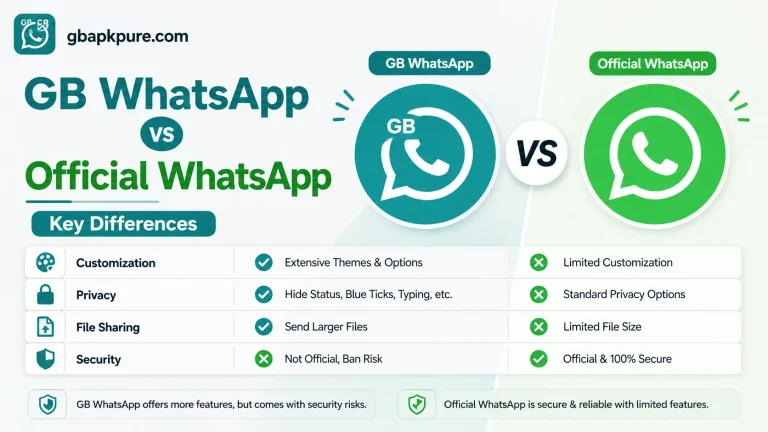
A Quick Comparison
|
Feature |
Official WhatsApp |
GB WhatsApp 2026 |
|---|---|---|
|
Built-in dual account |
No |
Yes |
|
Per-account themes |
No |
Yes |
|
Per-account notifications |
Limited |
Full control |
|
Per-account privacy |
Limited |
Full control |
|
Separate backups |
No |
Yes |
|
Switching speed |
N/A |
Instant |
Common Use Cases That Benefit Most
The dual account feature is most useful in a few specific situations, and understanding them can help you decide whether you need it.
The most common use cases include:
- Personal and work separation: keep your professional chats in one account and your personal chats in another, with completely different notification styles and themes
- Regional numbers: maintain a number from your home country and a number from your current country without carrying two phones
- Business and customer service: run a small business line alongside your personal number, with auto-reply and quick replies tuned for customers
- Family and social: keep close family in one account and broader social contacts in another, with different privacy settings
- Backup number: maintain a secondary number for online accounts and recovery codes, separate from your primary line
The gbapkpure.com team has seen all of these use cases in the community, and the dual account feature handles each one smoothly.
Troubleshooting Dual Account Issues
Most dual account setups work without any issues, but a few common problems can appear.
If you are seeing delayed notifications on the second account, check the battery optimization settings on your phone. Some Android devices aggressively kill background apps, which can delay GB WhatsApp notifications on the second account. Adding GB WhatsApp to the battery optimization exception list usually fixes this.
If you are seeing storage issues, the second account is creating a duplicate of every media file you receive. Disable auto-download for media on one of the accounts to save space.
If you are seeing sync issues, make sure both accounts are connected to the internet. The dual account feature requires both instances to be online for full functionality.
The gbapkpure.com team has published a more comprehensive troubleshooting guide for users who run into more complex issues, and the community forums are a great place to ask for help.
Frequently Asked Questions
No, each account needs a unique phone number. The verification system requires different numbers.
Yes, but only on different numbers. Using the same number on both apps at the same time is a guaranteed way to trigger a ban.
The 2026 build is optimized for low battery usage, but running two accounts will use slightly more power than running one. The difference is small in normal use.
The built-in feature supports two accounts. Some users run additional accounts through third-party cloner apps, but this is not officially supported.
The dual account feature itself does not increase ban risk. The risk depends on how you use each account. Following the anti-ban tips on gbapkpure.com will keep both accounts safe.
Conclusion
GB WhatsApp’s dual account feature is one of the most useful tools in the 2026 build. It removes the need for cloner apps, keeps both accounts fully featured, and makes switching between them fast and intuitive. Whether you are separating work and personal chats, running a business line, or just want a backup number on the same device, the setup is easy and the experience is smooth. Download the latest version from gbapkpure.com, follow the steps in this guide, and you will be running two WhatsApp accounts in under fifteen minutes.